
Docs / Sales
Orders & shipping
Confirmed work: shipping, tracking, packing slips and invoicing.
An order is confirmed work, created from a quote or from scratch. You ship it, invoice it and track what it cost you from the order page.
Direct sales
A sale made in person doesn't need the five steps of an order. Orders → New direct sale (also on the dashboard's quick actions) does them on one screen:
- Client: your Walk-in client to start with, for someone who didn't give a name. Pick another client, or New client to add the buyer with a name and, if they gave one, an email or phone.
- The lines, as on any order.
- Handed over now if they took it with them, or Ship it if it goes in
the post. To ship to someone with no address on file, type it in Ship
to, with the city, state and ZIP on one line (
Edison, NJ 08840) and the two-letter country last if it isn't the US. - Paid now, with the Method (Cash, Card or Other). Leave it unticked if they'll pay later.
Record sale creates the order and confirms it, records the handover (which takes the stock off the shelf), creates the invoice from the order, and records the payment. You land on the invoice, paid. With Ship it, the order waits confirmed with its invoice, and you ship it from the order page as usual.
Each of these is an ordinary document, linked to the others in the order's connections. Returns, voids and credit notes work exactly as for any other order, and the order's history has a Direct sale entry naming them.
If something stops the sale partway (an item you don't let go below zero, say), the order and anything already made with it stay. The message names the order so you can finish it from there.
The walk-in client
Every workspace gets one Walk-in client, made the first time it's needed. It has a Walk-in badge on the clients list. You can rename it, but you can't delete, archive or merge it away, and it can't be invited to the portal. It's never sent payment reminders, quote follow-ups, statements or late fees, since there's nobody to send them to. Reports that group by client show it as one row. It doesn't count as your first client on the setup checklist.
Projects
An order can belong to a project. An order converted from a quote on a project is already on it, and so is every invoice created from the order. What ships from a project's order counts as that project's material cost, at the cost the stock left the shelf at.
Order lines work the same as quote lines: an item or a typed description, and Add a note for a line with no money.
Statuses
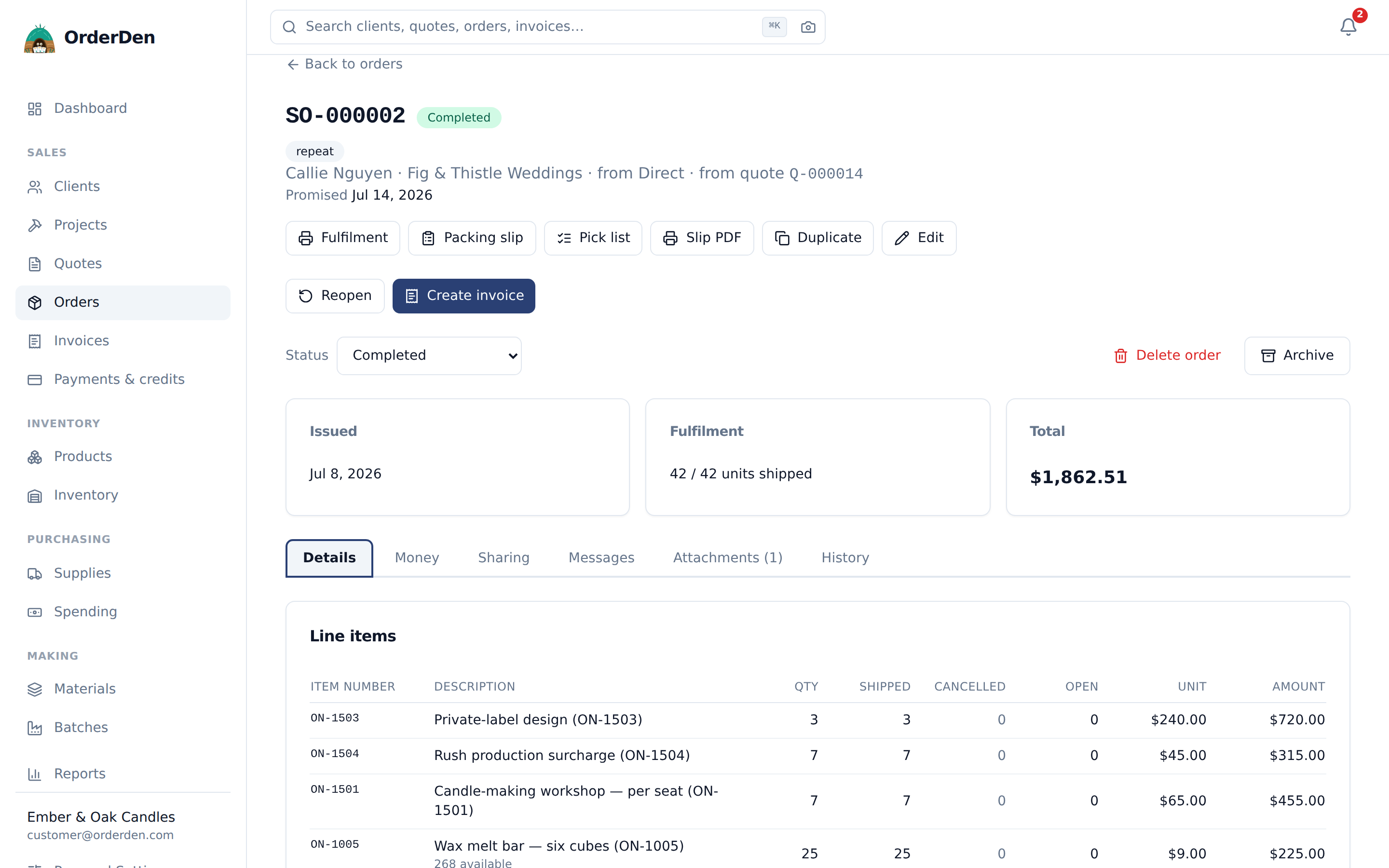
Draft → Confirmed → Partially shipped → Shipped → Completed, with Canceled along the way. Partially shipped and Shipped follow from what you've shipped. You set the others.
The buttons on the order page offer the usual next steps:
- A Draft order can be confirmed or canceled.
- A Confirmed order can go back to draft, be marked completed, or be canceled.
- A Partially shipped or Shipped order can be marked completed or canceled.
- A Completed order has a Reopen button, which puts it back to Confirmed.
An order can also complete itself. With Complete orders automatically once shipped, invoiced and paid ticked in Company Settings → Sales defaults, an order moves to Completed once every line has shipped or been closed short, all of it has been invoiced and every invoice from it is paid. Its history reads Order SO-0042 completed: shipped, invoiced and paid. A new workspace starts with it ticked. If you reopen an order, it stays open until another shipment, invoice or payment lands on it.
The Status picker under the buttons can set any status by hand, at any point, including on a completed or canceled order. Choosing a shipping status, or moving off one, asks you to confirm, because recording a shipment later can move the status again. The order's history records the change with your name.
Picking a canceled order back up allocates stock to its unshipped lines again, as far as what's free allows, since canceling gave it back to the shelf. The dialog says so before you confirm.
On the edit page an order's Payment terms can change, and so can Pick from, the location it's picked from, until something on it ships.
To see only the orders still being worked, set Status to Open on the orders list. Open is every order that isn't Completed or Canceled, the same orders the dashboard's Open orders card counts, and clicking that card opens the list filtered this way.
Delete removes a draft order. An order that has gone further can't be deleted, so use Archive to take it off the list. Deleting or archiving an order never touches invoices already created from it.
The number comes from your format in Company Settings → Numbering (default
SO-000001). To match another system, type your own Order # on the new
order screen, or change it on the order later.
The order page
The number, the status, the buttons, the Connections card (once the order is part of a job; see Connections) and the Issued, Fulfillment and Total cards stay at the top. The header also has Fulfillment sheet, Packing slip and Pick list for printing. Everything else is on tabs:
- Details: laid out like the printed order. Bill to and Ship to first, then the lines and totals, the invoices created from the order, and the internal notes last.
- Fulfillment: shipping it, closing it short, the shipments already sent, the stock set aside for it and what's being made for it. The count is the number of shipments.
- Money: the margin, what's been invoiced and paid, the order's expenses, the payment schedule and the final invoice.
- Sharing: the share link and the email. The emailed PDF and the email lead each line with its item number, as the order page does.
- Messages, Attachments and History.
The tab is part of the address, so you can bookmark an order open on a tab or send someone the link.
Some cards fold to a single line: click the card's title row, or the arrow at its right, to open or fold it. Stock allocation, Production, Closed short and Internal notes start folded; Invoices starts open. OrderDen remembers what you opened or folded, for you only, on any device you sign in on. A card with something waiting opens anyway: Invoices while a shipment isn't billed yet, Production while a run is in progress. The same goes for Internal notes on quotes and invoices, Payment methods on a client and Vendors on an item.
Deposits, installments and the final invoice
The Money tab shows what the order is worth, what's been invoiced so far, what's been paid and what's left to bill, with every deposit already paid listed under it.
A payment schedule splits the order into stages. Each stage is a percentage of the contract or a fixed amount, due on acceptance, on a date, after a number of days, or at a milestone you name. Create invoice on a stage invoices that stage. When you later press Invoice in the header, the first invoice takes off the stages already paid.
More in Deposits, installments and final invoices.
Taking payment on an order
When you share an order, the client can pay for it on the share link before you've created an invoice. This needs an online payment account connected (see Getting paid online).
Pressing Pay creates a deposit invoice for what's left of the order, taxed the way the order is, and takes the payment against it. It shows on the order's Money tab right away. Invoice in the header takes it off later: the first invoice made from the order deducts the payment, so the client isn't billed twice.
Pay stays on the share link, even on a completed order, until the order has been invoiced. After that the client pays the invoice.
Changes to an agreed order
The wrong client on an order before anything has shipped or been invoiced is fixed on its edit page: pick another client and the bill-to and ship-to addresses and the payment term follow them, with their tax exemption. Prices already on the lines stay as typed. Both clients' history records the move. After that the client is fixed: duplicate the order and change the client on the copy. Clear under an address empties it.
Add work agreed later as a new line on the order, and the money, tax and stock figures follow, before or after anything ships (see Editing after shipping). The order's history records the edit. You can add a fixed stage to the payment schedule for it, so the percentages already agreed still mean the same thing.
The accepted quote keeps its own numbers and signature. The project's contract figure is that quote's value before tax, shown next to what the work came to. See Projects, time and costs.
Emails to the client
The Order status emails card in the Reminders section of Company Settings → Email has three switches:
- Order shipped, on by default. It goes when you buy a label in OrderDen, with the carrier and tracking number, or when you set an order aside for collection and choose to tell the buyer. Recording tracking by hand doesn't send it.
- Order delivered, off by default. It goes when the carrier reports that a label bought in OrderDen was delivered.
- Order confirmed, off by default. OrderDen doesn't send this one yet, even with the switch on.
An email goes only when the client has an email address. Change the wording in the Email templates section of Company Settings → Email. See Reminders, follow-ups and status emails.
Client PO
An order can carry a Client PO: the client's own purchase order reference, up to 100 characters. It comes from the quote when you convert one, shows on the order page and every printed, emailed and shared copy, including the packing slip, and carries on to invoices created from the order. You can search for it on the orders list and add it as a column.
If you switch on Let portal clients send you client POs in Company Settings → Documents, a client with a portal account can send you the purchase order file. You read it next to the order form and accept it as a draft order with their reference filled in. See Client POs they hand over.
Requested and promised dates
- Requested date: the date the client asked for.
- Promised date: the date you committed to. Set a standard lead time under Company Settings → Sales defaults → Order lead time, and the new order form and quote conversion fill in a promised date that many days out, moved to the next weekday if it lands on a weekend. Orders made through the API, Duplicate or Reorder start with no promised date.
Both show on the order form and under the order number, and as Requested and Promised columns on the orders list. The list filters on Promised from and Promised to, and the order's history records changes to either.
The dashboard's Orders due this week widget lists orders that aren't completed or canceled and are promised by the end of the week. Anything past its promised date is marked Overdue.
Tags and source
Orders carry tags, such as rush or wholesale, like clients and items.
Type them on the order form, separated by commas. They show under the order
number and as a Tags column, and the Tags filter finds orders with any
of the tags you type. The history records tag changes.
Source is free text for where the order came from: "Instagram", "Repeat", the name of a fair. It's a column and a filter on the orders list, and you can set it on a batch of orders from the bulk menu.
Shipping
The Ship items card at the top of the Fulfillment tab is where everything leaves. Set the quantity going in this box on each line first (each starts at what's still open). Then pick a tab:
- Buy a label: buy postage here. It shows when a carrier network is connected.
- Enter tracking: you already have a tracking number.
- Not shipping it: a collection, a local drop-off or a hand-over. It works with no carrier network connected.
Only the quantities in the table ship, and they leave from the Ship from location above it.
Buying postage
Buy a label asks the carriers your network reaches for a price for the lines in the table and shows the quotes side by side. Buying one records the shipment, adds the postage to the order as its freight cost, keeps the label so you can reprint it, and marks the parcel delivered when the carrier reports it. If the Order shipped email is on, the client gets the tracking number. A shipment with a bought label has a Refund label button.
Connect Easyship, Shippo or ShipStation under Company Settings → Shipping. The shipping guide covers the rest, including buying labels for many orders at once from the orders list.
Recording a shipment yourself
Enter tracking records a shipment against the order's open lines:
- Ship any lines and quantities. Partial shipments are normal, and the order tracks shipped against ordered on each line.
- Each shipment has a carrier from your carrier list (the Carriers section of Company Settings → Shipping, which starts with UPS, USPS, FedEx and DHL), one tracking number per box, a ship date and notes.
- Paste a tracking number and the carrier fills itself in. UPS numbers start
with
1Z, USPS uses the 22-digit barcode, FedEx is 12 or 15 digits, and so on. OrderDen picks the matching carrier from your list, even one you renamed, such as "UPS Ground". It fills in a carrier only when you haven't picked one, and you can change it. - A carrier with a tracking URL template turns its tracking numbers into links on the order page, the prints, the emailed order and the share link.
- Ship from picks which of your locations the goods came from. It shows only when you have more than one. Each line shows what that location holds and its bin, such as "Studio: 5, A3". Shipping more than a location holds is allowed and takes it negative. OrderDen warns you in orange instead of stopping you.
- Freight cost records what you paid the carrier. See Freight cost.
Edit on a shipment fixes its paperwork: the carrier, the tracking numbers, the ship date and notes, or a collection's ready date and delivery window. Its Status can be set by hand too: a collection marked Shipped once it's picked up, a parcel marked Delivered, or a carrier's "delivered" taken back. What went in the box can't change there: void it and record it again.
Void a shipment to undo it. One that's been invoiced shows Void invoice INV-… first, because voiding that invoice is what lets go of the shipment. Voiding asks Did the goods come back?, ticked by default. Ticked, the stock goes back to the shelf it left from, at the cost it left at. Unticked (the parcel was lost, or the customer kept it), the order's quantities reopen but no stock comes back, and the history says so. A shipment with a bought label also offers Request the label refund first, ticked, since voiding removes the label. On a completed order it offers Reopen the order, so it can ship again.
Correcting an order
Edit is on every order, whatever its status, canceled included, so a mistake can be fixed where it was made. A canceled order stays canceled and sets no stock aside; picking it back up does that. Editing never unlinks the quote, the invoices, the client's purchase order or the shipments: the Connections card still lists them all. Only an archived order can't be edited until you restore it.
Editing after shipping
You can still edit an order's lines after it ships, to fix a price or add something that ships later. Edit shows a warning band once the order has shipped or been invoiced. Three rules apply:
- A line that has shipped can't be removed, its item can't change, and its quantity can't go below what shipped plus what was canceled. Cancel the rest of it instead.
- Everything else changes freely: the description, price, discount and tax of any line. Lines with nothing shipped can be removed, and new lines ship on a later shipment.
- Totals, the stock set aside for what hasn't shipped, and the margin are worked out again. Shipments, their freight and their tracking stay as they were.
Invoices already created keep their lines: fixing a price on the order doesn't change an invoice you sent. For an unpaid one, press Rebuild from order on its row in the Connections card, or on the invoice; see Rebuilding from the order. For a paid one, create a credit note for the difference. Invoice on the order bills what hasn't been invoiced at the corrected prices. The history entry for the edit says after shipping.
Stock
For lines whose item tracks stock, each shipment takes the shipped quantity off hand and writes a Shipment movement to the item's ledger. It uses up whatever the line had set aside.
The Stock allocation card on a confirmed order's Fulfillment tab sets stock aside for each line, from a named location if you like. The order page shows each tracked line's available quantity and how far short it is. Confirming an order doesn't set stock aside by itself. Canceling the order, sending it back to draft, completing it or closing a line short releases what it had set aside.
Picking by scan
Tick Pick by scanning on the ship form and every line drops to zero. Each scan then adds one. Matching happens in the browser, against the line's barcode and then its SKU, so a weak signal at the packing table doesn't slow it down. See barcodes and labels.
Freight cost
The Freight cost box on the Enter tracking tab records what you paid the carrier, as opposed to the Shipping amount you charge the client. A label bought in OrderDen fills it in at what the carrier charged. The carrier's bill often comes later, so every shipment card has a Freight cost field you can fill in or correct any time, even after the shipment is invoiced or the order is completed. Clear it and save to remove it. The history records each change.
The Shipments card sums it up as freight recovery: the shipping you charged, less the freight cost of every shipment. Positive means the client paid more than the shipping cost you. It's marked provisional while any shipment has no cost recorded. Freight cost never appears on printed documents, emails or the share link.
Free shipping
Tick Free shipping on the order and the shipping line reads Free on the order, its printed and emailed copies and its share link. An invoice created from the order shows its shipping as $0.00. The freight cost you record still counts against margin and freight recovery.
Gross margin
The Margin card on the Money tab shows what the order earns after its costs. People without permission to see costs don't see it.
- Net revenue: the line totals after discounts, plus the shipping charged. Tax is left out.
- Cost basis: each line's quantity × its unit cost (copied from the catalog item when the line was written, or set on the line), plus the freight cost of the order's shipments, plus the payment fees on anything the client paid online against the order's invoices, including its share of a combined invoice's fee (see Getting paid online), plus the expenses linked to the order, without their tax. An expense you bill to the client counts here at cost, and the money it brings back counts on the invoice.
- Gross margin: net revenue less cost basis, as an amount and a percentage.
A line with no unit cost, or a shipment with no freight cost, is left out rather than counted as free, and the card says so: based on 8 of 10 lines, freight cost known for 1 of 2 shipments. While anything is missing, the margin is marked provisional. A cost in another currency than the order's can't be added without an exchange rate, so it's left out too and named, such as 1 expense in EUR left out. That covers an expense, a payment fee your processor took in the currency your account settles in, and a label bought at a price in another currency. Shipping you charge counts as revenue, so until a shipment has a freight cost the margin reads freight not recorded yet and stays provisional. With no costs at all, it's unknown, never zero. To fill it in, give your items a unit cost (see Items) and record freight costs.
The same figure sits under the Total card at the top of the order, such as 62.4% margin · $48.10 profit, with on 3 of 5 lines when some lines have no cost and Margin unknown when none do. It turns to the warning color below your minimum (see below). Only people who can see costs get it, and it's never on the printed order, the PDF, the portal or a share link. Quotes and invoices show the same line. An invoice counts the freight on the order's shipments it bills, and its share of each order's freight on a combined invoice. A quote that charges shipping stays provisional, since nothing has shipped yet.
The orders list has a Margin column, and its CSV export adds Margin, Margin % and Margin coverage. The dashboard's Gross margin widget adds up the period's orders (see Dashboard).
Owners and admins can set a minimum gross margin in Company Settings → Pricing & margins → Margin. An order whose known margin is below it shows a warning on the Margin card and the Confirm order button. You can still confirm it, and the history records the margin it had. An order with no cost data is never flagged.
The Line items table shows each line's shipped, canceled (closed short) and open quantities next to what was ordered.
The packing slip
The packing slip is the one piece of paper from you in the box. Packing slip on the order opens it as a PDF in a new tab, ready to print, save or attach. Each shipment on the Fulfillment tab has its own slip, listing only what went in that parcel. Besides the lines, it can carry:
- Your thank-you note, written once in Company Settings →
Documents and filled in for each order with
{{client.firstName}},{{order.number}},{{org.name}}and{{org.website}}. It takes a little Markdown:**bold**and-bullets. - Care instructions for each line, from the item ("Trim the wick to 1/4 inch before every burn").
- The personalization the buyer asked for, so whoever packs the box has the words in front of them.
- Your social handle and a review link at the bottom.
Set these in the Packing slip card in Company Settings → Documents. Print prices is off by default. Print bins adds each line's bin.
Paper
Choose under Printed on in the same card:
- US Letter or A4: the whole slip on ordinary paper.
- 4×6 label: the same thermal stock your postage prints on. It has no room for prices, so it carries a QR code back to the order, where the client can see what they ordered, the tracking, and how to reach you.
On US Letter or A4, turn on Fold for a pouch to fit the clear pouch stuck on the box. Fold the slip in half and in half again, and the top-left panel shows the address and the order number through the window. The order's details sit in the top-right panel, a dotted mark at each edge shows where the half fold goes, and the gift message and the lines start below it, out of sight.
A slip per parcel
Each shipment prints its own slip with only the lines in that box. Find it next to each shipment on the order page.
Many at once
The orders to post panel at the top of the orders list shows everything confirmed and waiting to go out. Click Choose (or Choose & buy labels) to pick orders; every order starts ticked. Print N slips prints one PDF, a page per order, in the order they're listed. The same panel buys the postage.
Item labels
Item labels in the order header prints barcode labels for the items on the order. Each item or variant is listed once, with two boxes:
- Labels: how many to print. It starts at 1, not the quantity ordered, so a bag of 10 gets one label.
- Qty on label: the count in the bag, printed as Qty 10 under the name. Use it for parts you bag in tens but sell singly. Leave it blank for none. OrderDen remembers it on the item for next time.
Items with no barcode are listed in gray with a link to the item, where you can give them one. Lines that aren't catalog items aren't listed.
Choose the sheet, the labels already used and what prints under the bars the same way as on an item. The order number adds the order's number in small type at the bottom of each label. Print opens the labels as a PDF in a new tab.
Variants, personalization and kits
A line from a product with variants names which one: the picker nests them under the product, and the option values go into the line's description. Where the item allows it, the line also carries the buyer's personalization, such as a name to engrave. Both print on the packing slip.
A line for a kit ships as its components. Shipping two gift sets takes six candles and two boxes out of stock, and each movement points back to the kit's line.
Closing an order short
When the rest of a part-shipped order will never ship, use the Close short card on the Fulfillment tab. It cancels what's still open on the lines you tick, with a reason you have to give, which the history records. Nothing is ticked when the card opens.
A line is done once shipped and canceled quantities cover what was ordered.
When every line is done, the order becomes Shipped and can be marked
Completed. Canceled quantities can't ship later, and closing short releases
any stock set aside for them. On the API it's POST /orders/{id}/close-short.
Closed the wrong line, or the client wants the rest after all? The Closed
short card lists what was closed, with Reopen on each line. The quantity
is open again, waiting to ship, and the order's status follows. On the API it's
POST /orders/{id}/lines/{lineId}/reopen.
Invoicing an order
One Invoice button in the header. You invoice what has shipped:
- One shipment not yet invoiced: Invoice bills it straight away.
- Two or more: Invoice asks what to bill. Everything shipped, not yet invoiced (the default) puts all of them on one invoice, so you can ship several times and bill once. One shipment bills the one you pick.
- Nothing shipped yet: Invoice bills the order, for work paid before you make it, a pickup with no shipment recorded, or an order of services.
- Nothing left to bill: no Invoice button. Ship the rest to invoice it.
Whichever way you invoice, these always hold:
- Nothing is billed twice. A shipment can be invoiced once, and once the order has been invoiced before anything shipped, its later shipments add nothing.
- Lines that never ship (services, labor, lines with no catalog item) go on the first invoice.
- The order's shipping charge goes on the first invoice, once.
- Deposits, stage invoices and payments the client already made come off the first invoice as their own line, so the client can see the sum, up to what that invoice bills; anything over comes off the next one. Only money that has arrived is taken off.
- Voiding or deleting an invoice frees what it billed to be invoiced again.
Each invoice bills at the order's prices, discounts and line tax. Percentage discounts carry over as they are; a fixed discount is split in proportion to what's billed.
A week of orders at once
Tick orders on the list and choose Create invoices. Each order gets its own draft invoice that closes it out, with anything already paid on it (a deposit from the quote, a stage, a payment on the order's share link) taken off.
They're drafts, so nothing goes out until you've looked. Email each one from its own page. Mark sent on the invoices list changes the status without emailing.
An order still in draft, or one already closed out, is skipped, and the result lists what was done and what wasn't.
One invoice per client
Tick One combined invoice per client before you press Apply, and each client's selected orders share one invoice. Twelve orders across four clients makes four invoices. A client with one order in the selection gets an ordinary invoice.
The combined invoice lists each order under its own heading, such as Order SO-000012, followed by its lines. Each deposit already paid is taken off at the foot, naming its order. Every order shows the invoice in its Invoices card with its share of the total, and the invoice says which orders it covers.
It charges what the separate invoices would have: each order's lines, delivery and deposits are worked out on their own and then added up. Each order's Invoiced, Left to invoice and project figures count only its share.
Some orders can't share an invoice, and they say why:
- A discount on the whole order. Spreading it over another order's lines would change their tax. A discount on lines is fine.
- A payment schedule. Invoice it from its schedule instead.
- Different projects or currencies.
- Delivery taxed at two different rates, since one invoice has one delivery charge.
That client's orders are left uninvoiced with the reason on each row, and the other clients' invoices still go through.
On the Free plan, a combined invoice counts as one of your 50.
Duplicating and reordering
- Duplicate on the order page copies the order into a new draft for the same client, whatever its status.
- Reorder, next to a client's recent orders on the client page, does the same from that order.
The copy keeps the lines (with their items, quantities, prices, line discounts and tax), the document discount, the tax on shipping, the shipping amount, the addresses, the tags, the source and the public notes. It gets a new number. It starts with no shipments, no customer PO, no requested or promised dates, no project and no free shipping, and the internal notes aren't copied. Both orders' history records the copy, each naming the other.
On the API it's POST /orders/{id}/duplicate, which returns the new order.
History
Creating an order is one entry. After that, the History tab records every change: quantities, prices and discounts on each line, added and removed lines, addresses and fields, status changes, shipments and invoicing, each with who did it. See Activity & history.
Connections
Quotes, orders, invoices, payments and credit notes show a Connections card once a document is part of a job. It sits first under the page header, above the Issued and Total cards. It lists the client's purchase order, the quote, the order and its shipments with their tracking numbers, the deposit and progress invoices, the invoices created from the order, the payments and credit notes on each one, and the project. Each line links to its page and shows its status. The document you're on is highlighted. The card is the same on every page, so you can go from a payment back to the quote, or from the quote to the payment. Team members who can't see costs see the documents and their statuses without the amounts.
Everything on this page is on the free tier: one person, the whole product, no card.
Start free