
Docs / Basics
Clients
Company profiles, contacts, addresses, payment terms and notes.
Clients are the companies and people you sell to. Every quote, order and invoice belongs to one.
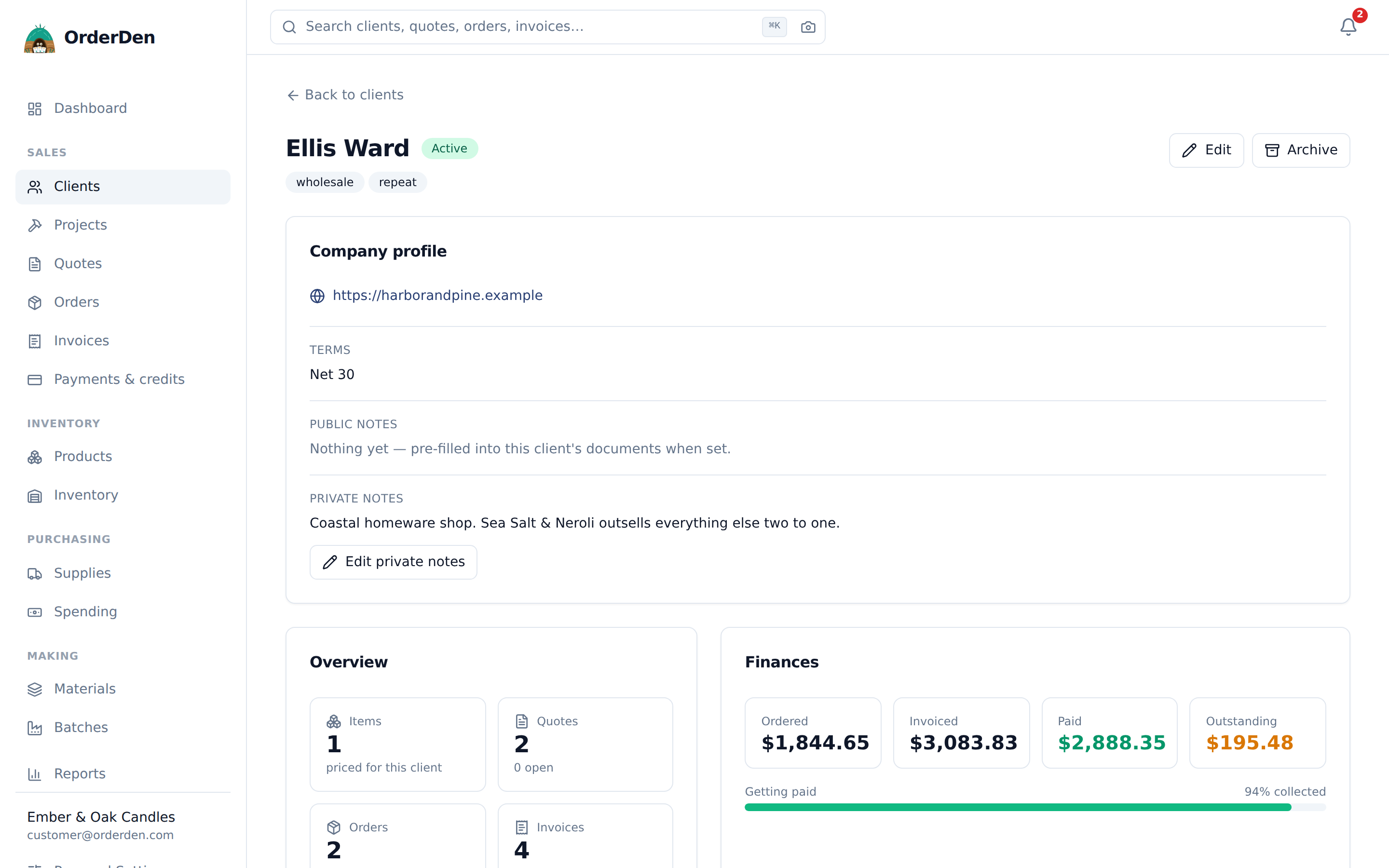
The client page
A client's page opens on Overview, with the rest on tabs. A tab with something in it shows a count, such as Contacts (3).
- Overview: the company profile, notes and custom fields, and two summary cards (see Overview).
- Contacts: the people, the addresses, and Portal access.
- Sales: what their new documents start from (payment terms, price list, quote follow-ups), their projects, their latest orders with Reorder, and their recurring invoices.
- Money: how they're billed and taxed, their credit and what they owe, with Record payment, the statement of account, and cards on file.
- Attachments: everything uploaded to the client.
- History: the trail, and Add note.
The tab is part of the address (?tab=contacts), so a link can open straight on
a tab. Archive and Restore are above the tabs.
Editing
There's no edit screen. You change each card's fields where you read them: Company profile and Notes on Overview, Sales defaults on Sales, Billing & tax on Money. When you change anything, a bar at the bottom of the page offers Save and Discard. Save saves every card you changed, and only those, and the bar says Saved. when it's done. Emptying a box clears the stored value. If you've changed something and click away to another tab, the browser asks before leaving.
Contacts, addresses and portal access save one at a time.
Adding a client
New client asks for a Company name, and that is the only thing it needs. Add an Email, a Phone and an Address and the client starts with a primary contact and a default billing and shipping address, so a quote can go out straight away. If you start from Add a client on a new quote, order or invoice, saving takes you back to it with the client picked.
To start a document for a client, open their page and click New quote, New order or New invoice. The client is already picked.
What a client has
- Company profile: Company name, Website, Status and Tags (free-form labels such as wholesale or priority). Once Website has an address in it, the button at the end of the box opens the site in a new tab.
- Contacts: each with Name, Title (their job title), Email, Phone, Roles and Primary contact. Add or change one in the Edit contact dialog. Contacts are offered as one-click recipients when you email a document.
- Email and phone: the company's own emails, phones and faxes, which also come in through an import or the API. Each has a kind, a value and a label; mark one Primary for its kind and it's the one the clients list shows. Edit one with the pencil, or remove it.
- Addresses: as many as you need, each labeled and marked for billing, shipping, both or neither. One can be the default billing address and one the default shipping address. They fill in Bill to and Ship to on new documents. A client's first address starts ticked for all four, so it's used for billing and shipping by default; untick any you don't want. Street and City are required, and so are State and ZIP where the country has them (Postal code outside the US, where it's checked against the country's format for Canada, the UK and Australia). An address saved before these were required shows Incomplete until you edit it.
- Delivery to: on an address used for shipping, say whether it's a Home or a Business, or leave it on Let the carrier decide. Every carrier charges more to deliver to a home, so a home rated as a business comes back as a surcharge after the label is bought. When an order's Ship to was picked from this address, its rates are asked with your answer. The address shows Home or Business once it's set.
- Payment terms: one of your own terms (Company Settings → Payment terms), filled in on this client's quotes and invoices. The invoice due date follows from it, and a term with a deposit makes their quotes ask for one.
- Tax: mark a client tax exempt and nothing sold to them is taxed. Their lines come in untaxed and locked, and documents carry a "Tax exempt" badge with the exemption reason you recorded, such as a resale certificate number. Their Tax ID prints next to it. See Tax.
- Price list: which of your price lists this client's quotes, orders and invoices use, with its minimums and case packs. Left blank, they're on your default list.
- Public notes: filled in on this client's documents, where they see them.
- Private notes: internal notes about the client, never shown to them.
- Custom fields: your own fields for clients (see Custom fields). Owners and admins always see the card, with a Manage link.
Overview
Two cards sum up the relationship. Overview counts their items, quotes (and how many are open), orders (and how many are active) and invoices. Finances shows what they've ordered, what you've invoiced, what they've paid, what's outstanding, and the percentage collected.
History and notes
The History tab is the client's timeline: every change to the client and to their quotes, orders and invoices, with who made it, plus notes you add with Add note. A note has Edit and Delete for whoever wrote it, and for owners and admins; an edited note says so. See Activity & history.
Files
The Attachments tab holds contracts, tax certificates, artwork and anything else uploaded to the client, up to 10 MB a file. Choosing a file starts the upload, and each file shows its progress. You can pick several at once. Deleting a file asks you to confirm, because it can't be undone.
Importing and exporting
To bring in a client list from a spreadsheet, use Import on the clients list. It loads a CSV (names, emails, phones, tags, payment terms, a billing address and a shipping address) with a column-mapping step, a preview and a one-click undo. A Payment terms column is matched by name against your own terms, ignoring case and spaces. A name that matches nothing is ignored, and the row still imports. See Importing your spreadsheet.
Export CSV takes the list back out (Search & lists),
with the whole address book, not only the columns on screen. The file always has
Email, Phone, Website, Payment terms, Notes, six Billing
address columns, six Shipping address columns and Other contacts
(every other way of reaching them, written like
EMAIL: [email protected] (Accounts)). Import the file back into OrderDen
and the address book comes back with it, with no mapping to do.
In the file, a single address is the client's default for both billing and shipping. A different shipping address is saved as a second address. Importing again with Update them matches an address on its street and updates it, and never deletes one you added in the app.
Your data exports everything at once in one zip: clients, contacts, documents and files.
Archiving
Archive hides a client from your lists and keeps every document. Restore brings them back.
Delete is for a client added by mistake. It only works on a client with nothing attached: no quotes, orders, invoices, credit notes, payments, credit, projects, recurring plans, portal logins, client POs, saved cards or files. Otherwise it's refused and says what the client has, and you archive them instead.
Credit and payments
The client's Money tab shows the credit they hold and what they owe on open invoices.
Credit builds up when a credit note isn't applied or refunded right away, and when a payment recorded here is more than they owed. Credit history lists the latest 20 movements, newest first, each with the balance it left.
Record payment takes the amount that arrived and puts it against as many of their open invoices as it settles. Leave the boxes empty and it goes against the oldest first. Anything left over becomes credit. The form shows only when they have open invoices.
Cards on file and recurring invoices
- Payment methods, on the Money tab, needs a connected payment account (Company Settings → Online payments). It shows what the client has on file, which is the default, and how each was added: by the client in their portal, or by you with their written authorization. Removing one removes it at the processor too.
- Recurring invoices, on the Sales tab, lists the plans billing them and what they come to a month.
See Recurring invoices, cards on file and late fees.
A client who doesn't want reminders
Three switches take one client out of the automatic emails and fees:
- No automatic payment reminders and Never charge a late fee, in the Billing & tax card on the Money tab.
- No automatic quote follow-ups, in the Sales defaults card on the Sales tab.
The new client form has the same switches, under Automatic messages. Each covers every document the client has and will have. They stop the schedule, not you: Send now and emailing a document by hand still work. See Reminders, follow-ups and status emails.
Merging duplicate clients
After an import you can end up with "Harbor Coffee", "Harbor Coffee Roasters" and "harbor coffee roasters llc": three records for one customer, and statements, credit and aging that don't add up.
The clients list shows a possible duplicates panel when it finds likely matches, grouped two ways:
- The same email address.
- The same name at the same ZIP code. Name alone isn't enough: two "Bloom & Co" in different towns are two businesses.
Click it to see the groups. Merge these asks two things. First, which record to keep; the one with the most documents is suggested. Second, which values to keep, field by field, where the records differ. Everything else keeps the kept record's value. Tags from all the records are combined.
A merge:
- Moves everything onto the kept record: every quote, order, invoice, credit note and payment, recurring invoices, per-client item prices, addresses, contacts and their emails and phones, portal accounts, cards on file, credit history, projects, share links, messages, files, statements and the activity trail. It happens all at once or not at all.
- Adds up the credit on each account.
- Archives the emptied records instead of deleting them, so old links and exports still find something.
- Leaves a note on both sides: the kept record says what it took in, and each merged record says where its history went.
A merge can't be undone.
A merge is refused, with nothing changed, when two of the records have a portal account for the same email address. Remove the duplicate account first, then merge. You can merge up to ten records into the one you keep.
Merging is in the API too: GET /clients/duplicates for the groups and POST /clients/merge to merge. See the API reference.
Portal access
Portal access, on the Contacts tab, gives someone at the client an account. Enter their email address, and they can sign in to see their quotes, orders and invoices, message you about a document, and send you files. There's no password: they ask for a sign-in link when they want one. Remove ends access right away. See Client portal.
Everything on this page is on the free tier: one person, the whole product, no card.
Start free